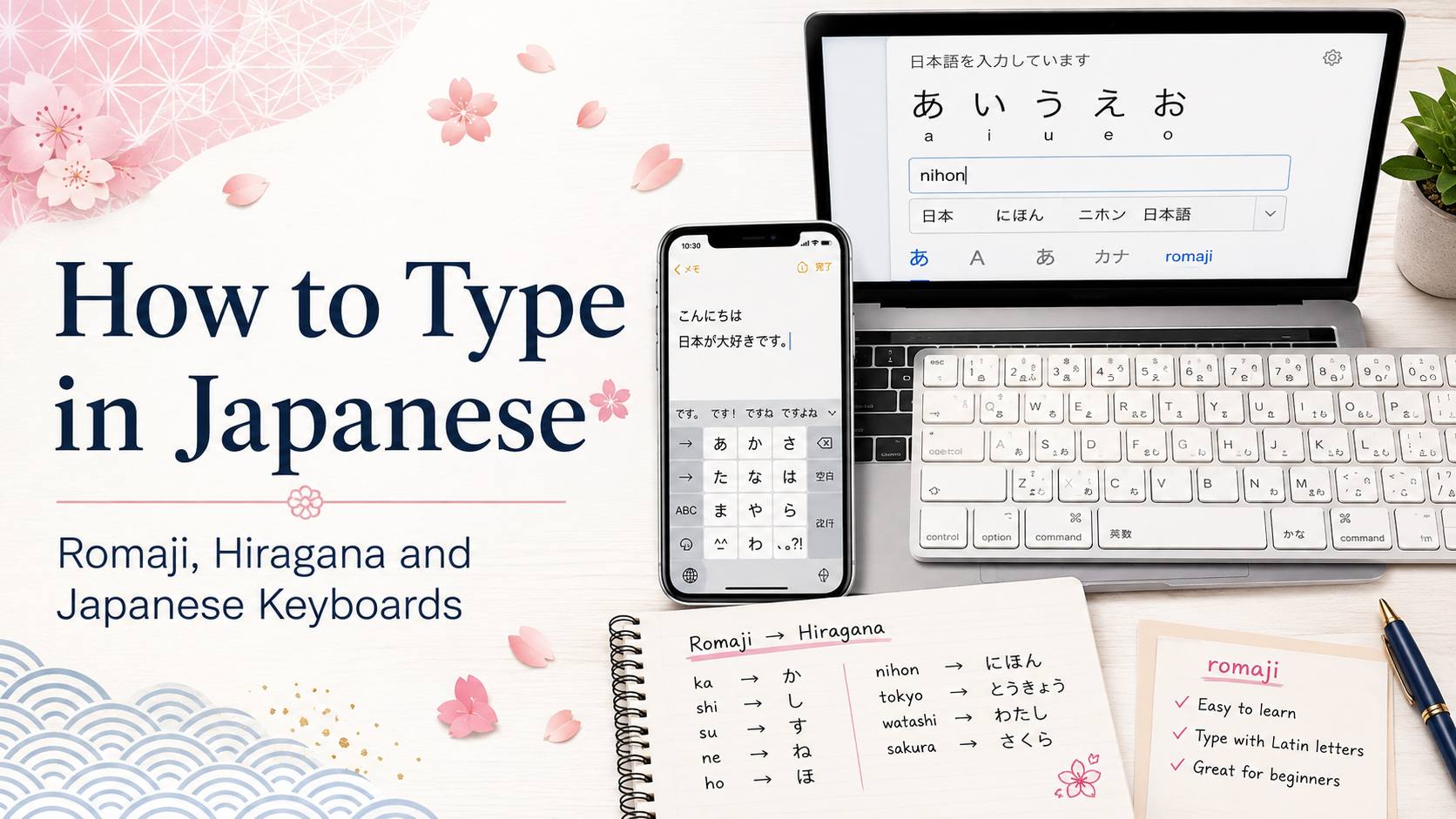
You have learned a few Japanese words. You can recognize ねこ and maybe すし. Then you try to actually write something in Japanese on your phone, and nothing happens. Your keyboard only produces English letters.
This is the part almost nobody explains. Japanese typing does not work like typing French or Spanish, where you just add a few accented characters. It works through a small piece of software that listens to what you type and converts it into Japanese as you go.
Once you understand that one idea, everything else falls into place quickly. Here is how Japanese input works, and how to set it up on an iPhone, an Android phone, Windows, or a Mac.
Reading Japanese Is Not the Same as Typing It
This trips up a lot of beginners, so it is worth clearing up first.
Modern phones and computers already come with Japanese fonts installed. If you visit a Japanese website right now, the characters will display correctly. You do not have to install anything, change any setting, or download a language pack just to read Japanese.
Typing is different. To produce Japanese characters yourself, you need to add a Japanese input method to your device. That is a separate feature, and it is off by default on most devices sold outside Japan.
Displaying Japanese: already works. Typing Japanese: needs a one-time setup.
How Japanese Input Actually Works
Japanese has thousands of characters, so there is no keyboard with one key per character. Instead, your device runs a converter, usually called an input method, that turns what you type into Japanese text.
The most common approach is romaji input. You type Japanese sounds using the regular Latin letters already on your keyboard, and the software replaces them with hiragana in real time.
Type n, and nothing much happens yet. Type e, and ね appears. Add k, then o, and you have ねこ. Four keystrokes, two Japanese characters, no special hardware.
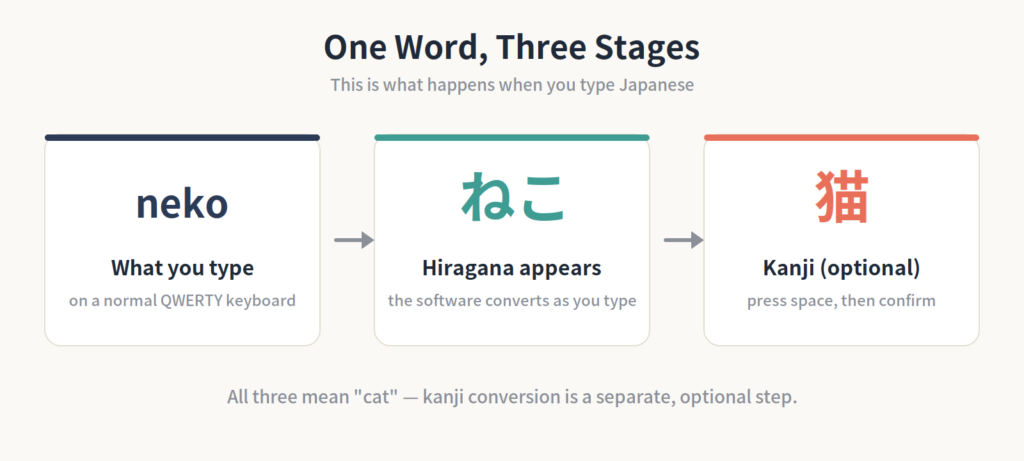
If you want kanji, there is one extra step after the hiragana appears. We will get to that below.
Romaji Input vs Kana Input
There are two ways to feed Japanese into the converter, and both produce identical results.
| Romaji input | Kana input | |
|---|---|---|
| What you press | Latin letters (n, e, k, o) | Kana directly (ね, こ) |
| Keyboard needed | Any normal keyboard | A kana layout |
| Learning curve | Almost none if you know romaji | You must learn the layout |
| Typical users | Most learners, and many Japanese people | Some fast typists in Japan |
For a beginner, romaji input is the obvious choice. You already know the keyboard, and you already know that ねこ is “neko.” Nothing new to memorize.
How to Type Basic Hiragana
For most hiragana, you type exactly what the character sounds like. Here is the full pattern.
| What you type | What appears |
|---|---|
| a i u e o | あ い う え お |
| ka ki ku ke ko | か き く け こ |
| sa shi su se so | さ し す せ そ |
| ta chi tsu te to | た ち つ て と |
| na ni nu ne no | な に ぬ ね の |
| ha hi fu he ho | は ひ ふ へ ほ |
| ma mi mu me mo | ま み む め も |
| ya yu yo | や ゆ よ |
| ra ri ru re ro | ら り る れ ろ |
| wa wo | わ を |
| ga gi gu ge go | が ぎ ぐ げ ご |
| pa pi pu pe po | ぱ ぴ ぷ ぺ ぽ |
Notice that you do not type the dakuten mark separately. Typing “ga” produces が directly.
Also useful to know: most input methods accept more than one spelling for the same sound. Both “shi” and “si” give you し. Both “tsu” and “tu” give you つ. Both “fu” and “hu” give you ふ. If you learned one spelling, keep using it.
The Three Things Beginners Always Ask About
Almost every question about Japanese typing comes down to these three characters.
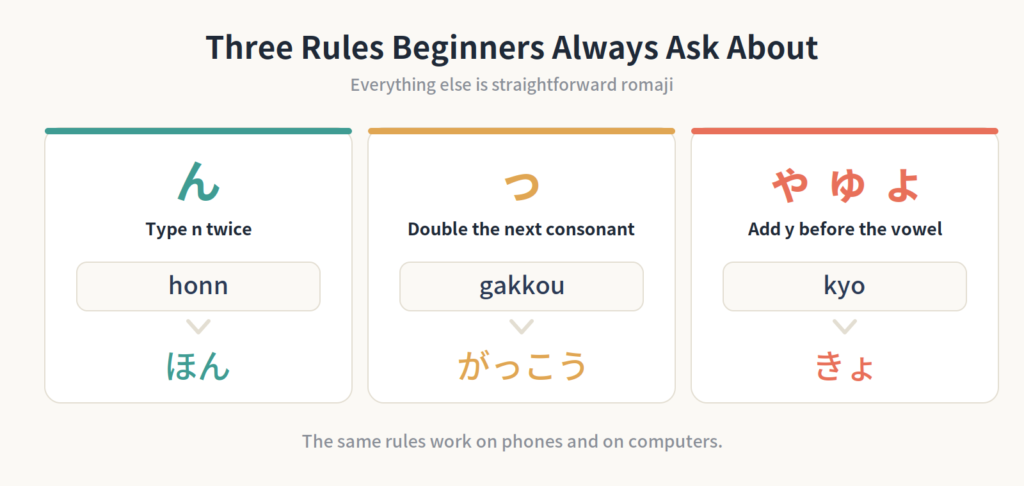
How to type ん
Type n twice. Typing “honn” gives you ほん.
Why twice? Because a single “n” might be the start of な, に, ぬ, ね, or の, so the software waits to see what comes next. Typing “n” a second time tells it to commit to ん.
A single “n” usually works when the next letter is a consonant, so “ganbaru” often produces がんばる correctly. But “nn” always works, and building that habit will save you from mistakes later.
How to type small っ
Double the consonant that follows it.
- gakkou → がっこう (school)
- kitte → きって (postage stamp)
- chotto → ちょっと (a little)
In “gakkou,” the doubled k is what produces っ. The rest is just normal romaji.
How to type small ゃ, ゅ, and ょ
Insert a y between the consonant and the vowel. You do not type the two characters separately.
| What you type | What appears |
|---|---|
| kyo | きょ |
| kyu | きゅ |
| sha | しゃ |
| cho | ちょ |
| ryo | りょ |
| ja | じゃ |
Compare “kiyo,” which gives you きよ (three separate beats), with “kyo,” which gives you きょ (one blended sound). The extra i is the difference.
From Hiragana to Kanji: How Conversion Works
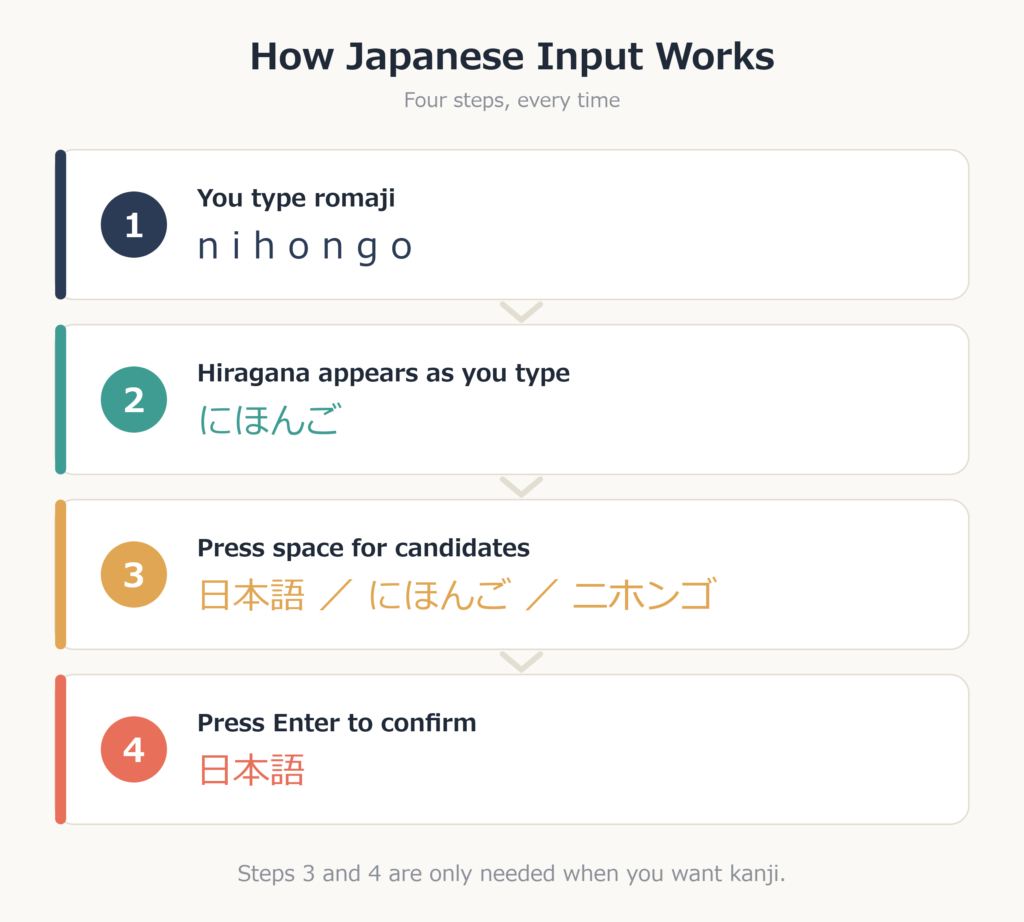
So far you have been producing hiragana. Getting kanji takes two more keystrokes.
Type the reading in romaji, press the space bar to see suggestions, then press Enter to accept one. On a phone, you tap a suggestion above the keyboard instead of pressing space.
Here is the classic example. Type “nihongo” and you get にほんご. Press space, and the software offers you 日本語 as the most likely conversion. Press Enter, and the kanji is confirmed.
Three things are worth knowing about this step.
- The first suggestion is not always right. Many Japanese words share a reading. Press space again to cycle through other options.
- Text is not final until you confirm it. Unconfirmed text usually appears underlined. Press Enter to lock it in.
- You can skip conversion entirely. If you want にほんご in hiragana, just press Enter without pressing space first. Hiragana is real Japanese, not a rough draft.
The suggestions also improve with use. The software remembers which words you pick and offers them sooner next time.
Setting Up a Japanese Keyboard on Your Device
The steps are similar everywhere: add Japanese as an input option, learn how to switch to it, then type romaji exactly as described above.
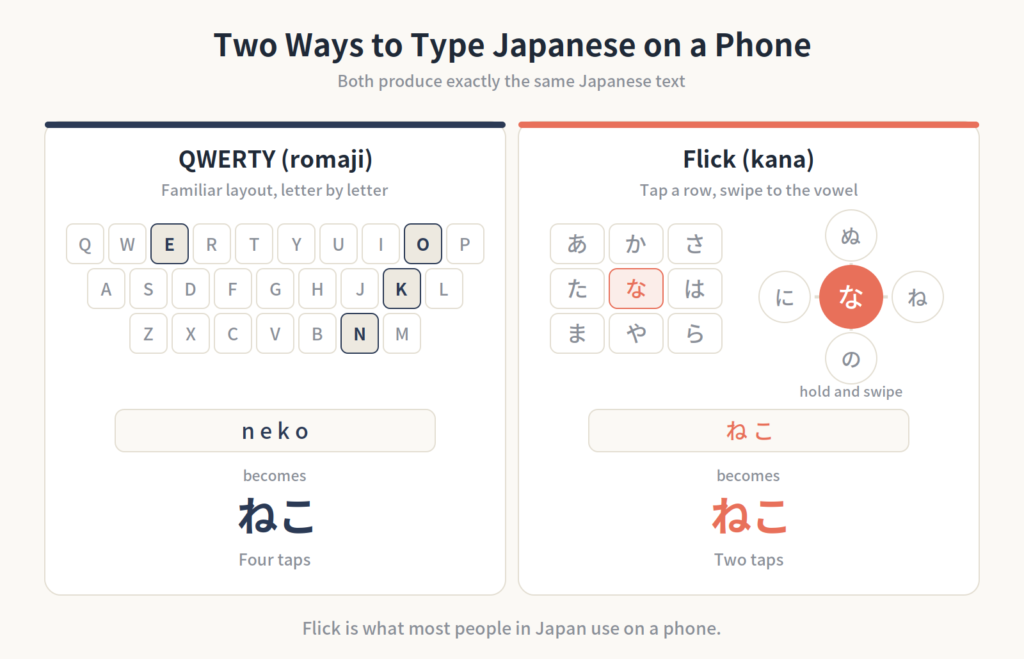
One important note before the details: menu names and locations change between operating system versions. Rather than following exact wording, look for the section that deals with keyboards, languages, or input, and you will find the right place.
Japanese keyboard on iPhone
Open the Settings app and find the keyboard section, which lives under general settings on most iOS versions. Add a new keyboard and choose Japanese. You will usually be offered a kana layout, a romaji layout, or both.
After that, a globe key appears on your keyboard. Tap it while typing to switch between English and Japanese.
Japanese keyboard on Android
On Android, the setup depends more on your keyboard app than on the phone. Most people use Gboard, where you open the keyboard’s own settings and add Japanese to your list of languages.
Phone manufacturers sometimes ship a different keyboard by default, so the wording you see may not match anything you read online. The system settings section for languages and input is the reliable starting point. Once Japanese is added, a globe or language key switches between layouts.
Japanese keyboard on Windows
Open the Settings app and find the language section, then add Japanese as a language. Windows installs its Japanese input method along with it.
To switch, press the Windows key and the space bar together, or use the language indicator near the clock. Once Japanese input is selected, there is a second toggle between kana mode and plain alphanumeric mode. If you are typing “neko” and getting neko, that toggle is the thing to check.
Japanese keyboard on Mac
Open your system settings, find the keyboard section, and look for input sources. Add Japanese there. Recent macOS versions call this panel System Settings while older ones call it System Preferences, and the layout of the panel has changed several times.
Switch inputs using the menu that appears in the menu bar at the top of the screen, or with the keyboard shortcut assigned in those same settings.
You do not need a physical Japanese keyboard. Every method above works on the keyboard already in front of you.
QWERTY or Flick? Typing Japanese on a Phone
When you add a Japanese keyboard to a phone, you generally get a choice between two layouts.
QWERTY romaji looks like the English keyboard you already use. You type “neko” and get ねこ.
Flick input is a compact grid where each key holds one row of the hiragana chart. Tap the な key for な, or hold it and swipe in one of four directions for に, ぬ, ね, or の. It is the standard way most people in Japan type on a phone, and it is noticeably faster once it clicks.
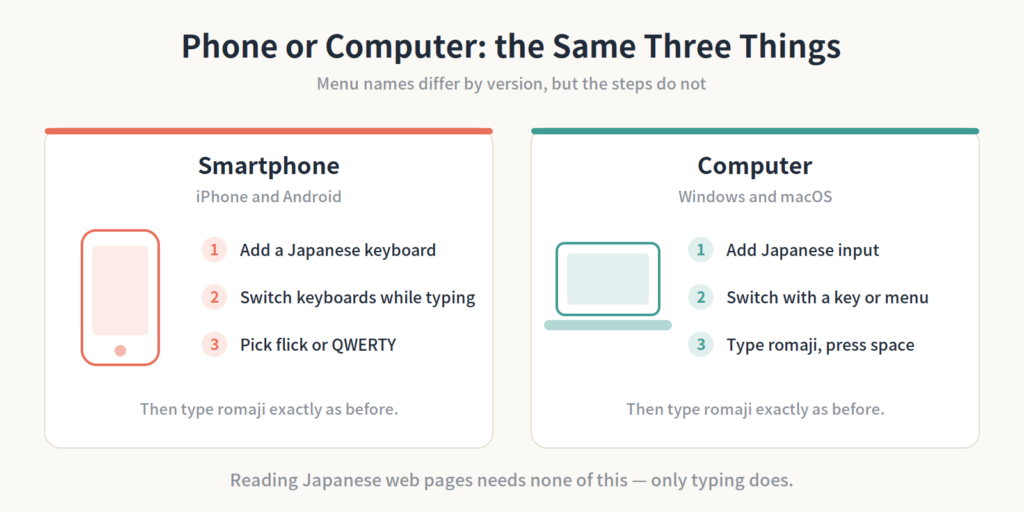
Start with QWERTY if you want to type something today. Try flick when you are curious, since nothing about your Japanese has to change to use it.
Practice: Type These Five
Open any text field and work through this list. Say each word out loud as you type it.
| Type this | You should get | Meaning |
|---|---|---|
| neko | ねこ | cat |
| sushi | すし | sushi |
| arigatou | ありがとう | thank you |
| nihongo | にほんご | the Japanese language |
| nihongo + space + Enter | 日本語 | the same word in kanji |
Then try the harder set: honn → ほん, gakkou → がっこう, and kyou → きょう. If all three come out right, you have covered the rules that cause almost every beginner problem.
Common Beginner Mistakes
- Assuming you need to change your phone’s language. Adding a keyboard does not change your menus, apps, or system language.
- Forgetting the second toggle on a computer. Selecting Japanese input is one switch; turning on kana mode is another. Both have to be on.
- Typing a single n for ん. It works sometimes and fails at the worst moments. Use “nn.”
- Accepting the first kanji suggestion every time. Read the options before pressing Enter, especially with names and short words.
- Not confirming the text. Underlined text is still being edited. Press Enter to finish it.
- Believing you need a Japanese keyboard to read Japanese. Reading needs nothing at all.
Where to Go From Here
Japanese typing is one of those skills that looks complicated from the outside and turns out to be four or five rules on the inside. The conversion step feels strange for a day, and then it becomes automatic.
The fastest way to get comfortable is simply to type. Search for a Japanese word, write a short message to yourself, or type out the vocabulary you are studying instead of only reading it.
Want to Try Japanese Input Right Now?
If setting up your device feels like a lot of effort before you have even tried it once, there is a shortcut. Our Japanese typing game includes its own virtual Japanese keyboard, so you can experience Japanese input immediately without touching your phone’s settings.
No system language change, no new keyboard added to your device, and nothing altered about the keyboard you normally use. QWERTY romaji input is there if you want something familiar, and Japanese flick input is there when you feel like trying the layout used across Japan. You type practical Japanese words while playing, which is a lower-pressure way to get used to the feel of it.